Room for your ideas
Edit longer messages and several settings in a clear browser view.
Write welcome messages, prepare quiz rounds and choose useful updates: the Friendly Helpers Control Panel lets you shape your bot comfortably in a browser. Sign in with Discord, choose your server and open the module you want.
This guide is in English. The bot, Control Panel and original screenshots currently use German. Commands and button names below match the interface.
Edit longer messages and several settings in a clear browser view.
Settings you save here are also available in the matching Discord centre.
The save bar highlights pending changes. Tests are clearly separate actions.
Welcome, quiz, notifications and more: choose a feature and shape it to fit your community.
Welcome, server statistics, clan statistics, notifications, demo mode, quizzes and the Operations Center each have their own area. Operations is in a limited introduction.
Assign welcome messages, questions and updates to existing server channels.
Plan ranked quiz sessions and manage events in their respective modules.
A few deliberate steps take you from an idea to a feature your members can use.
Open the Control Panel and sign in with the Discord account you use to manage your server.
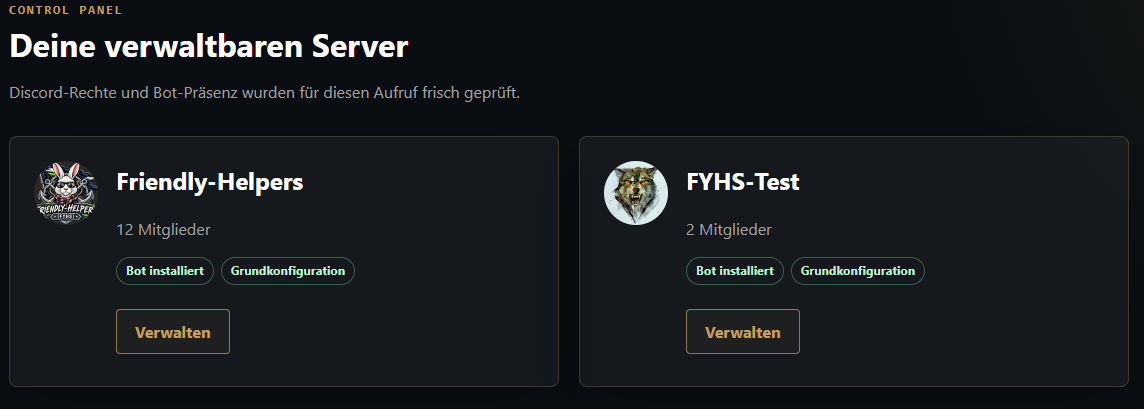
Choose a server you can manage with the bot installed, then select a module.
Choose channels and options. Save your changes with the save bar.
Use the module’s test action and check the result in the selected Discord channel. Enabling a feature is a deliberate next step.
Useful for writing, overview and planning. Use the save bar for settings; tests and other actions have their own buttons.
Useful for quick changes on your server. Selected settings are saved immediately there.
Original screenshots will show the actual German interface.
/welcome einrichtenOpen the Welcome Center
/notifications einrichtenOpen the Notification Center
/serverstats einrichtenSet up server statistics
/clanserverstats einrichtenSet up clan statistics
/quiz einrichtenOpen the Quiz Center
/demomodus einrichtenSet up demo mode
In the Control Panel, you choose existing channels. The optional creation of default channels is an explicit action in the Discord Notification Center.
Check that you signed in with the correct Discord account, can manage the server and have installed the bot there.
Want to get to know Friendly Helpers before adding the bot to your server? Join our Discord server. See real bot responses, try the commands available there and talk to us about ideas for your community.
Explore the bot in our public bot areas. Use /help to find useful commands and get to know the WoWS tools for yourself.
Ask us which features fit your community, from a first welcome to a quiz that brings several clans together.
Need help getting started or want to share feedback? Our server is a place for questions, experiences and ideas for improvements.
What you can try depends on the public channels and your server permissions. Admin centres and the Control Panel remain for server administrators; during its limited introduction, we arrange Operations Center demonstrations individually.