Friendly-Helpers Discord Bot

Notification Center

Manage nine types of Discord notifications for ships, Patch Radar, the Logbook and clan events, directly in Discord or through the Control Panel.

Friendly-Helper bot logo
2 ways Discord and Control Panel
9 modules individually configurable
From 18:00 daily ship showcase
Delivered live directly in Discord

What does it do?

The Notification Center sends scheduled and event-based WoWS and project updates as messages in Discord text channels. It is completely separate from Server Stats and Clan Stats; notification clans are linked separately.

You can manage the same saved configuration in two equivalent ways: directly in Discord or through the Control Panel. The connected Friendly-Helper bot remains the sole sender in both cases.
Notification modules

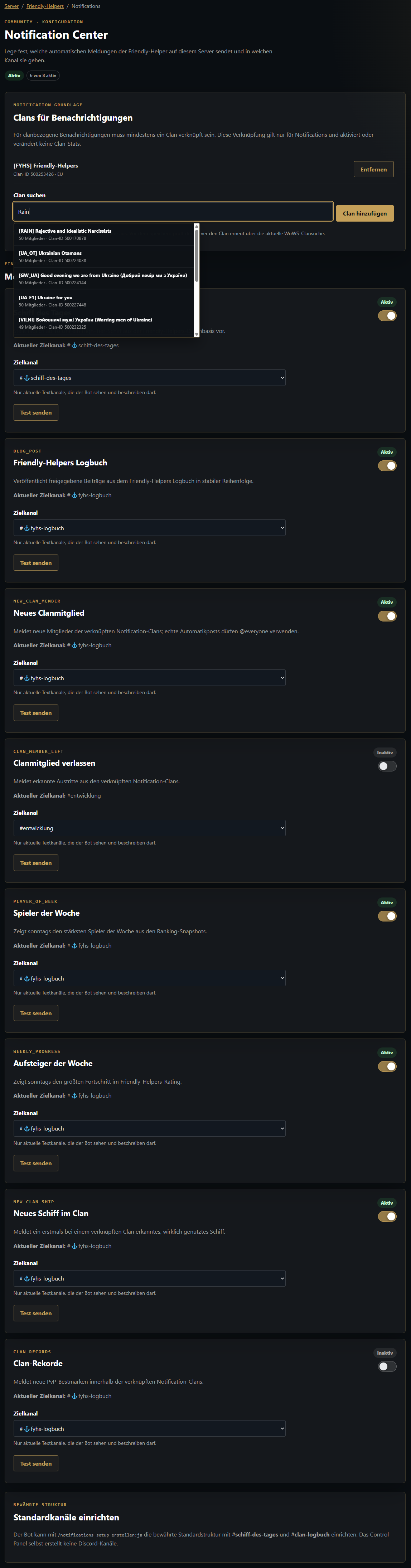
Each module can be enabled or disabled individually and assigned to an existing text channel. Where a Discord example is available, it appears in the corresponding module card. Click it to enlarge it. The screenshots show the German interface; the instructions below explain it in English.

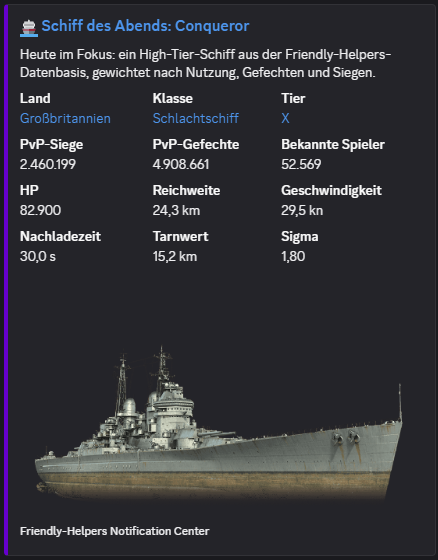
Daily ship showcase Showcases a selected ship each day with an image, key data and a link to the ship comparison.
daily_ship Daily from 18:00
Discord example of the daily ship showcase
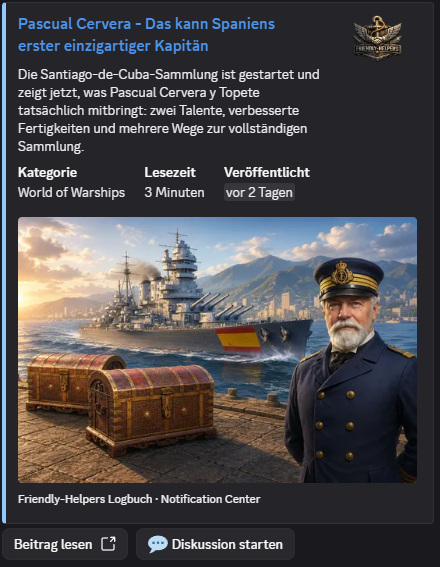
New Logbook posts News, updates and background information about World of Warships, the project and the bot.
blog_post When new Logbook posts are published
Discord example of a new Friendly-Helpers Logbook post
Patch Radar Announces a newly approved analysis of the changes between two WoWS versions and links to the full Patch Radar.
patch_radar When a new analysis is approved
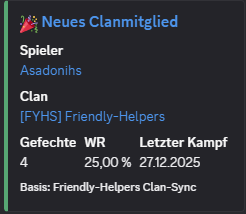
New clan members Announces actual new members in the clans linked for notifications.
new_clan_member When an actual clan change occurs
Discord example of a new clan member notification
Clan member departures Records actual departures from linked notification clans in the clan logbook.
clan_member_left When an actual clan change occurs
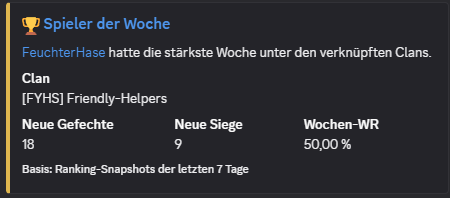
Player of the week Highlights the strongest player from a valid weekly comparison on Sundays.
player_of_week Sunday from 15:00
Discord example of the player of the week
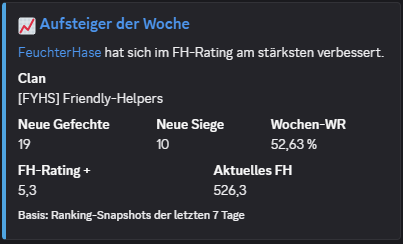
Most improved player of the week Highlights the greatest improvement in the Friendly-Helpers Rating on Sundays.
weekly_progress Sunday from 15:00
Discord example of the most improved player of the week
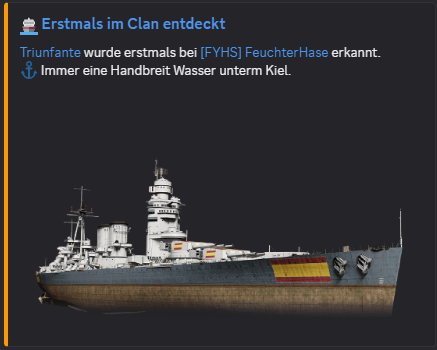
New ship in the clan Announces a ship that a clan member has actually used and that has been detected for the first time.
new_clan_ship When an actual fleet change occurs
Discord example of a newly detected ship in the clan
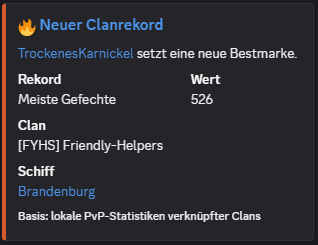
Clan records Announces a new PvP record within a linked notification clan.
clan_records When a new record is set
Discord example of a new clan record
Established default channels The daily ship showcase goes to #schiff-des-tages. The other eight modules use #clan-logbuch by default.
One destination channel per module Each module can use a different existing text channel. Saving again replaces the previous assignment.
Two complete setup methods, one shared configuration

Changes made in Discord appear in the Control Panel and vice versa. Both interfaces read and save the same current configuration.

Option A: directly in Discord

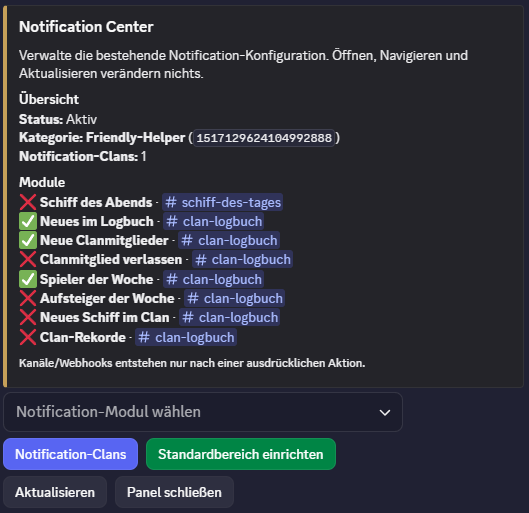
Use /notifications einrichten to open the private Notification Center on your server. There you can manage modules, destination channels, notification clans and test messages.

1
/notifications einrichten Opens the saved status and the selection of all nine modules.
Notification Center in Discord with an overview of all modules and the saved configuration
2
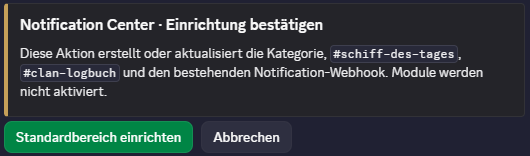
Standardbereich einrichten Choose “Standardbereich einrichten” (set up the default area) in the Discord Notification Center and confirm creation. Only then does the bot create the category and default channels.
Discord confirmation for creating the default notification structure
3
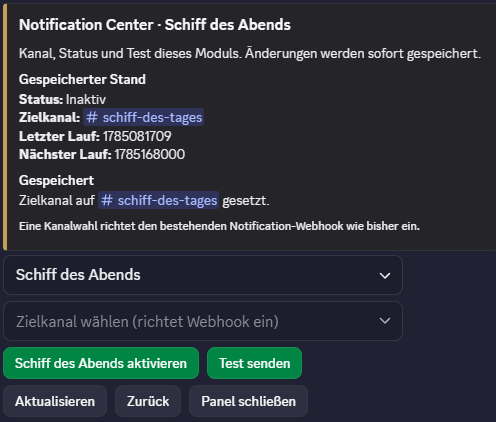
Choose a module and destination channel Select a module, assign an existing text channel and explicitly enable or disable it. A test message checks the saved channel.
An individual notification module with its destination channel, status and test function in Discord
4
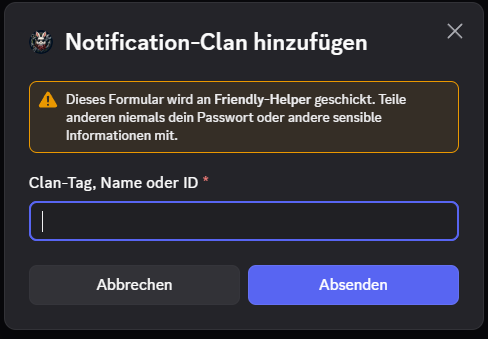
Add a notification clan Find the clan by tag, name or ID. This link applies only to the Notification Center and remains separate from Clan Stats.
Discord form for finding a notification clan
5
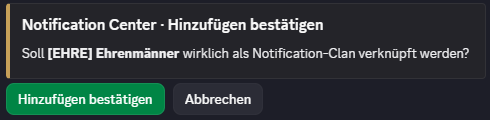
Confirm the clan link Discord shows the clan it found once more. The link is saved only after you explicitly confirm it.
Discord confirmation before adding a notification clan
6
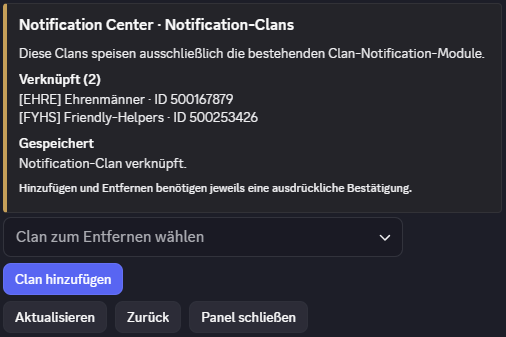
Check saved clans The clan view shows all linked clans and lets you add further links or remove existing ones.
Overview of saved notification clans in Discord

Option B: through the Control Panel

The Friendly-Helpers Control Panel is an equivalent, live interface for the same notification configuration.

1
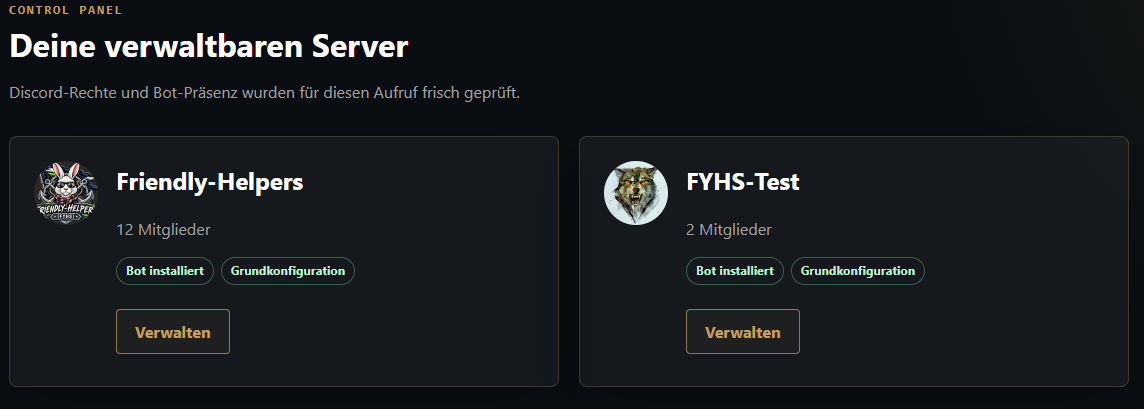
Sign in with Discord and choose a server Open the Control Panel, sign in with Discord and choose a server you are allowed to manage and where the Friendly-Helper bot is connected.
Server selection in the Friendly-Helpers Control Panel
2
Configure notifications Open “Notifications”, manage modules, existing destination channels and notification clans, then save or test your settings.
Live notification configuration in the Friendly-Helpers Control Panel
3
Save or test Saved changes also apply in Discord immediately. The already connected bot handles test messages through the existing test queue.
4
Use existing Discord channels The Control Panel uses existing Discord channels. If you want to create the Friendly-Helpers default structure automatically, you can do so once through the Discord Notification Center.
Open Control Panel (German)

Schedule and triggers

1
Daily from 18:00 The daily ship showcase is posted once a day. The bot takes recently used ships into account to avoid repetition.
2
Sunday from 15:00 Player of the week and most improved player of the week run on Sundays, based on the valid weekly comparison.
3
Only after approval or an actual change Logbook posts require valid publication and approval for Discord. Clan events are posted only when an actual change occurs.

Permissions and safety

Admin controls Server admins or members with “Manage Server” can configure notifications. New servers start with no active modules; each module is explicitly enabled or disabled.
One bot handles delivery The existing Friendly-Helper bot handles Discord delivery, schedules, deduplication, baselines, webhooks and test messages. The Control Panel does not open a second Discord connection.
Shared configuration Discord and the Control Panel read and write the same PostgreSQL rows. There is no separate CP dataset or second notification configuration.
Required bot permissions For existing channels, the bot needs View Channel, Send Messages, Embed Links and Read Message History. “Manage Channels” is required only when you explicitly start creating the default structure.
Friendly-Helper Discord Bot

All this and much more, directly on your Discord server

The Friendly-Helper bot brings ship data, player statistics, clan analyses, maps, commanders and comparisons directly to your server.